Join and clock in
Your first goal is one paid delivery. Start with a company truck: it costs nothing to collect and arrives fully fuelled.
- Choose Trucker with /class. Follow GPS to the Port Depot at the Los Santos docks; changing class leaves you off duty.
- Walk up to the foreman and press E to talk. Choose Clock in to start your shift and put on your uniform.
- Press F6 to open Freight. If you see Off duty, return to the foreman and clock in.
Choose your first contract
- At the depot, open Standard and choose an unlocked general-freight offer. Click the row to read the pickup, destination, weight and trailer.
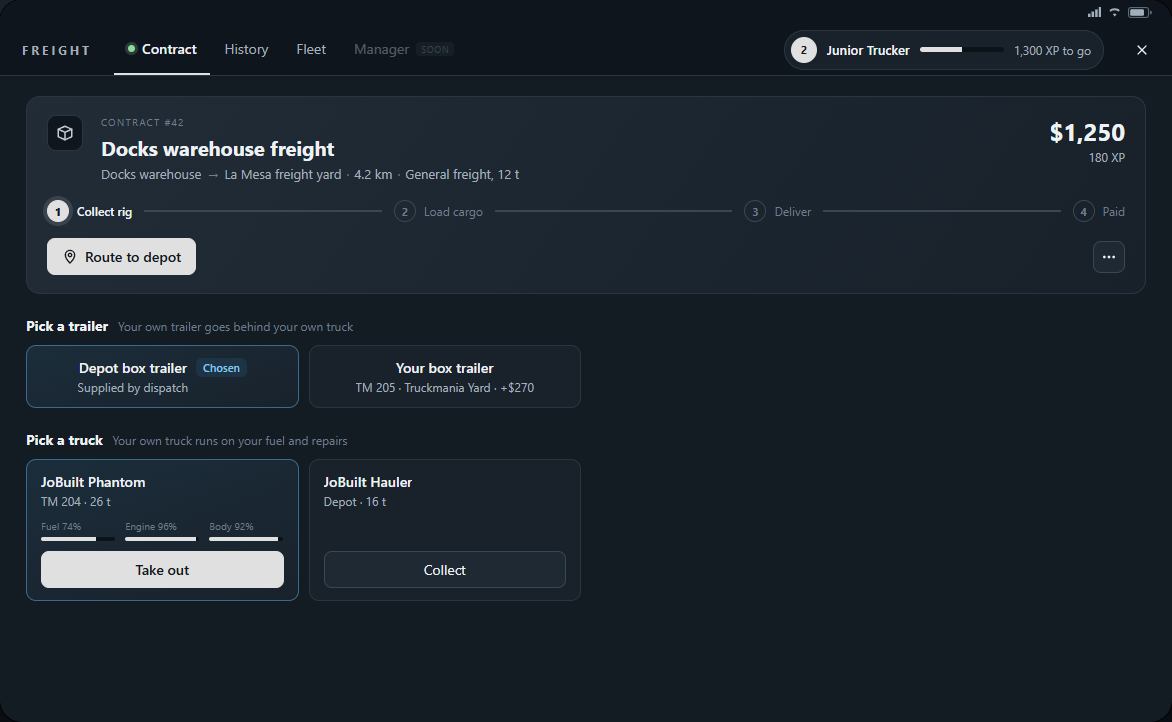
- Press Accept. The contract changes to Collect rig; collect the depot's JoBuilt Hauler, or pick a truck of your own.
- Find the assigned truck and trailer using their map markers. Get into the truck and reverse slowly under the front of your assigned trailer until it attaches.
Complete your first loop
- Follow the loading route. Stop inside the yellow checkpoint with the assigned trailer attached and stay in the driver seat. Loading starts automatically when the rig is ready; no interaction key is needed.
- Wait for loading to finish. Follow the new route to the destination and stop in its checkpoint to unload.
- Wait for payment confirmation. The completed contract shows Delivered; your bank money and trucking XP are awarded at delivery.
- For your first shift, return both truck and trailer to the depot. In Freight, open the current contract's three-dot menu and choose Return rig at depot. With the contract and rig cleared, ask the foreman to Clock out.