Use text chat, nearby voice, phone calls and radio channels to keep in touch and coordinate work.
Text chat and commands
Press T to open chat. Type your message and press Enter to send it. Press Escape to cancel before sending.
Start a command with / and follow its suggested arguments. Useful examples are /phone to open your phone, /radio to open your radio and /ticket to contact staff.
Keep public messages brief and clear. For a conversation with one driver, exchange phone numbers; for a convoy, agree on a radio frequency.
Talking to people nearby
Enable voice chat in the game settings and select the microphone and output device you actually use. Use your configured voice push-to-talk control to speak to nearby players.
Press the grave/backtick key (usually below Escape) to cycle Whisper, Normal and Shouting. Normal is the starting mode. Watch the voice indicator and choose a range suited to the conversation.
Nearby voice depends on distance. Use a phone call or a shared radio channel when you need to talk across the map.
These are default keys. If you have rebound them, the Settings tab of the pause menu shows your current keys. The radio also displays your current radio talk key.
Phone calls, contacts and messages
Carry a phone item in your inventory. Press M or type /phone to open it. If it will not open, check that you still have the item.
Exchange phone numbers with the other player. Save their name and number in Contacts so you can find them again. A phone number is different from a player ID.
Use Messages to send a text to their number. Include a useful location, what you need and any job or vehicle details. Check the conversation for their reply.
Use the phone dialler or a saved contact to call. The other player must answer before you can speak together. End the call with the hang-up control when finished.
Read work notifications and dispatch texts in Messages. Keep useful messages until the job or issue is resolved.
Joining a radio channel
Carry a Radio item; YouTool sells one. Use it from your inventory, press = or type /radio to open the handset.
The v2 radio has a passive display: use the physical buttons and keypad, not the screen. The menu button below the screen cycles Tune, Channels and Settings. There are no touchscreen controls or scrolling lists.
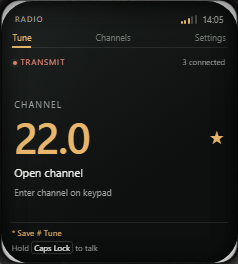
Agree on an exact frequency with the people you want to reach. Press the handset number keys to enter it, * for a decimal point while entering, then # to tune. For 22.1, press 2, 2, *, 1, #. Frequencies run from 1.0 to 500.0 in steps of 0.1; 22.0 and 22.1 are different channels.
Check that the display shows your frequency and On air. The people count shows how many listeners are on that channel. The example 22.0 below is a chosen meeting frequency, not a required company channel.
The physical Back button returns from Channels or Settings to Tune. While entering a frequency it erases the last character; from Tune with no entry it puts the radio away. Escape closes it immediately. Hold Caps Lock to transmit by default, then release it to listen. Use the talk key shown on your display if you have rebound it. You can talk while the handset is closed.
Say who you are calling, identify yourself and give a short message. Let others finish before transmitting. Everyone listening on the same frequency can hear you; do not treat an open channel as a private call.
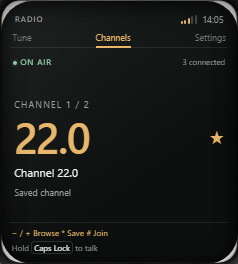
Channels shows one saved or configured channel at a time. Use the physical −/+ buttons to browse and # to join. Example frequencies and counts come from a browser preview.Transmit means you are holding the radio talk key. Receiving appears when someone else on the channel is talking. These example states do not represent a live call.
Favourites, volume and putting the radio away
On Tune with no frequency entry in progress, press the physical * key to save or remove the current channel. You can keep up to eight favourites. Press the menu button for Channels, browse one channel at a time with −/+ and press # to join. On Channels, * saves or removes the displayed channel; reserved channels cannot be joined without access.
On Tune, the physical −/+ buttons adjust the pending entry by 1.0; press # to join it. The keypad supports one decimal digit. Comma and period step through whole channels directly, as does turning the channel knob with the mouse wheel. Clicking that knob advances one whole channel.
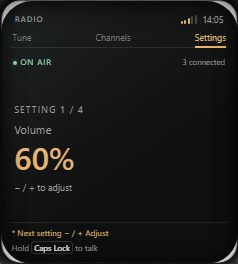
Press the menu button until Settings is highlighted. Settings shows one item at a time: Volume, Position, Display size and Connection. Press * to cycle items; # also advances except on Connection. Use −/+ to adjust Volume in 5 percent steps, select Left or Right position, or adjust Display size from 80 to 120 percent in 5 percent steps. Changes save immediately.
Turn the volume knob with the mouse wheel to adjust listening volume in 5 percent steps. Clicking it raises volume by 5 percent, or lowers it by 5 when already at 100 percent. A volume of zero mutes incoming radio audio.
Favourites and display settings are saved for your character. The radio can rejoin your last channel when you log in with access to a radio; check the frequency before speaking.
Putting the handset away leaves the channel connected. To disconnect, open Settings, cycle to Connection with * and press #. Losing access to the radio item also disconnects you.
Use * to cycle Settings items and −/+ to adjust the displayed value. On Connection, # disconnects; putting the radio away keeps you connected.
If you cannot hear or be heard
Nearby voice: check voice chat is enabled, your microphone is selected, your push-to-talk binding works and the other player is within your selected voice range.
Phone: check that you carry the phone item, dialled the right number and the call was answered. Sending a text does not start a voice call.
Radio: check you carry the radio item, both displays show the same exact frequency, the radio is On air and listening volume is above zero. Hold the displayed talk key rather than the nearby-voice key.
If the issue continues, use /ticket. Say whether it affects nearby voice, calls or radio, whether you can hear others, and what you already checked. Include the frequency for a radio problem.