Cash, bank and TMC
Press ESC to check Bank and Cash in the pause menu topbar. Cash is the money you carry; Bank is your personal account balance. Depositing moves cash into your bank account, and withdrawing turns bank money into cash. Neither action earns extra money.
- Your player ID is the number other players use to send you money, by bank transfer or /givecash. It never changes. Find it in your inventory under Personal info, or beside Player ID in the banking window.
- TMC means Truckmania Coin. It is a separate balance shown at the top right of the pause menu and used in the Shop for VIP packages and other offers. Bank deposits and withdrawals move dollars, not TMC.
- At shops that offer Cash and Bank, select how to pay before buying. Check the selected balance and total; money in the other balance does not cover a shortfall.
Finding and opening a bank
- Find a Bank marker on the full map and travel to the counter, or walk up to an ATM.
- Hold Left Alt and aim at the teller, then choose Bank. At an ATM, choose Use ATM.
- Check the selected account, its balance and Cash on you. At a counter, the left column may also show company or organisation accounts you are authorised to manage.
- Stay beside the teller or ATM while banking. Click Close or press ESC to leave the window.
Depositing and withdrawing cash
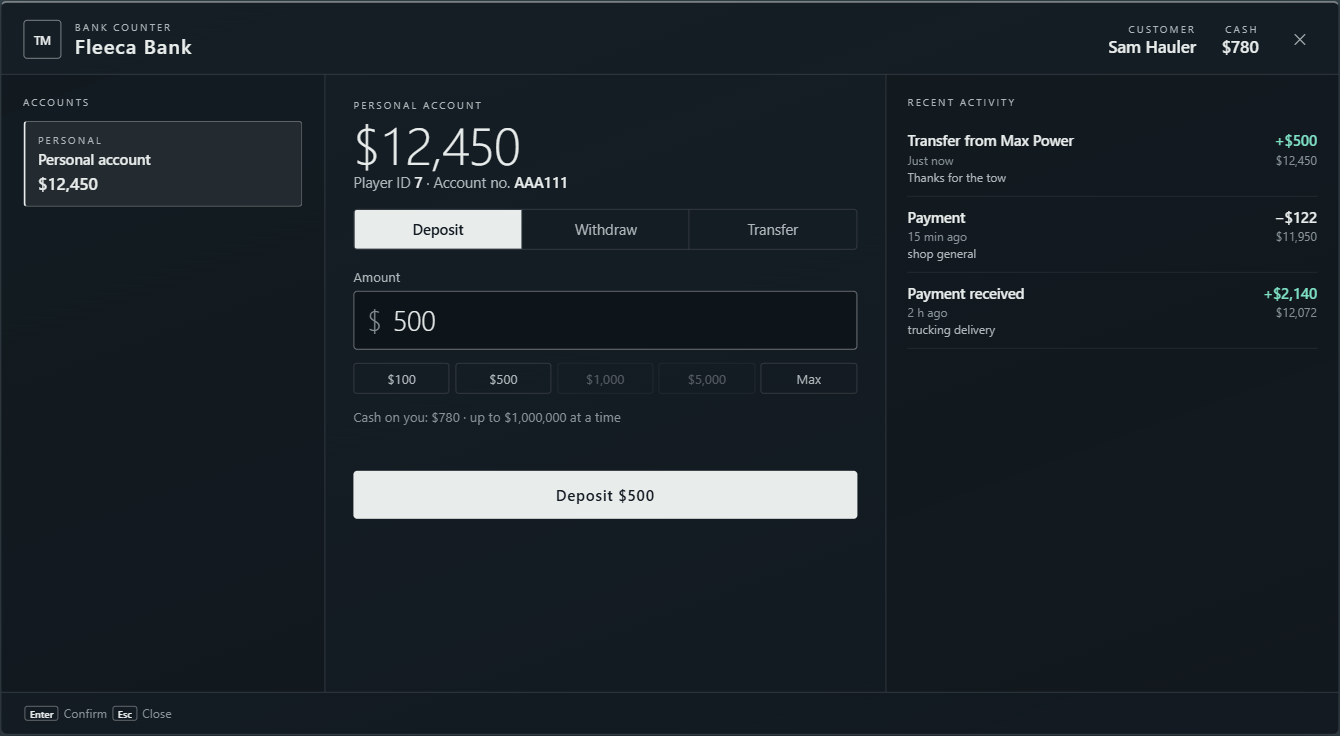
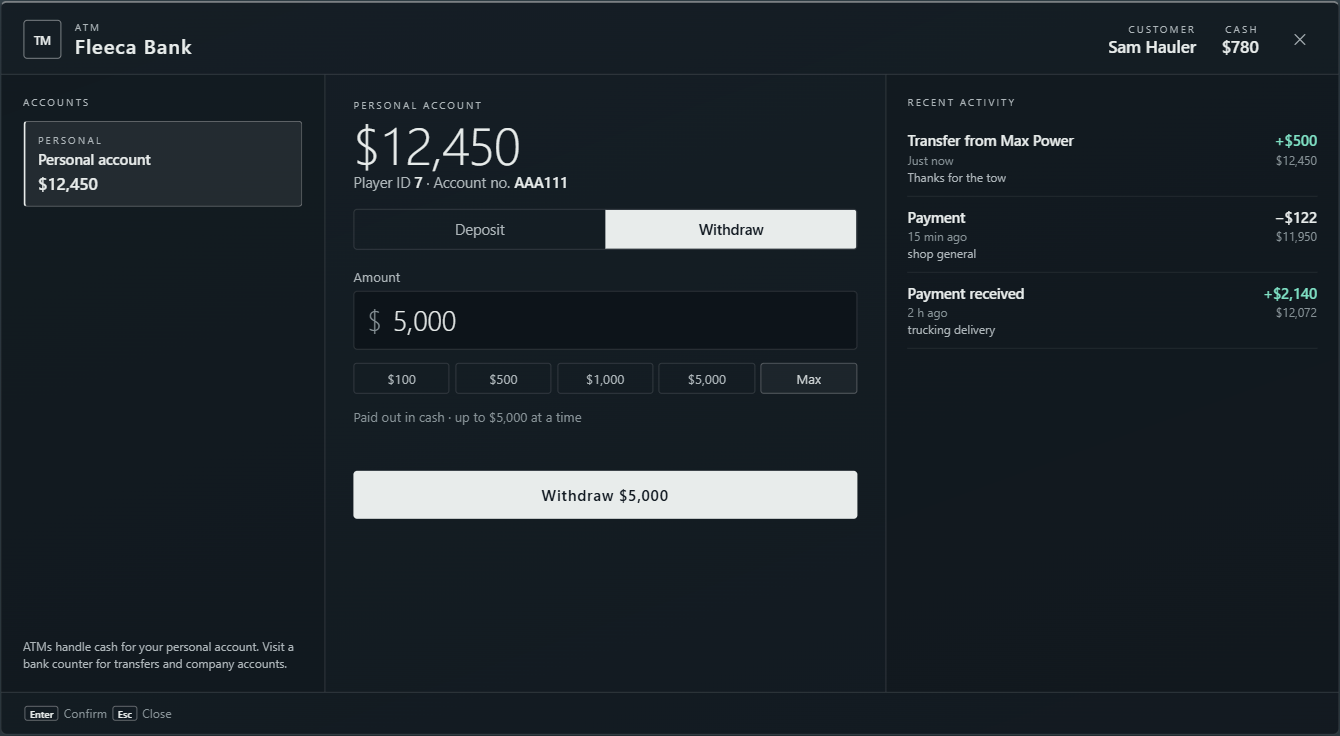
- Select your Personal account, then Deposit to put carried cash into the bank, or Withdraw to take money out as cash.
- Enter a whole-dollar amount or use an amount preset. Max chooses the most allowed by your available funds and the transaction limit.
- Check the amount on the Deposit or Withdraw button, then click it. Read the result message and check the updated cash and account balances.
Sending a bank transfer
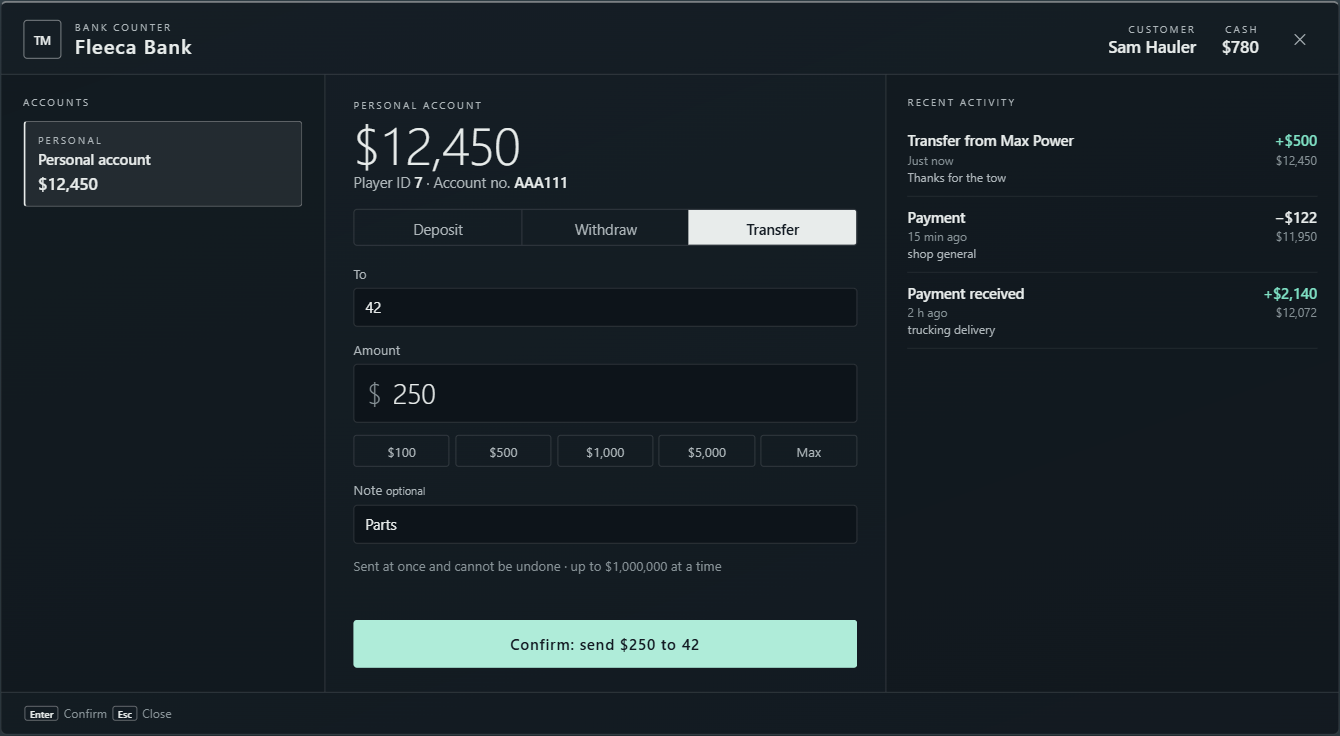
- Visit a bank counter and select the account you want to send from. Choose Transfer.
- Enter the amount and who it is for. For another player, type their player ID; they must be in the city. For a company or organisation, type its account name, such as mechanic.
- Add an optional note so the payment is easier to recognise in Recent activity. Check the recipient and amount carefully.
- Click Transfer once to reveal the confirmation. Check the amount and recipient again, then click Confirm to send. Press ESC to cancel the confirmation if you need to change anything.
Handing cash to another player
Stand within 3 metres of the recipient. Press T and type /givecash followed by their player ID and a whole-dollar amount. For example, /givecash 12 250 gives $250 of your carried cash to player 12. Ask them for their player ID first; it is the same one used for bank transfers. You can give from $1 to $10,000 at a time and must carry enough cash.
Income, spending and recent activity
- Clock in with your class foreman to receive regular job paychecks while on duty. Freight deliveries and completed mechanic work have their own earnings; check the class app for the job result and your career history.
- Plan for supplies, fuel, vehicle costs and roadside help before a shift. Read the quoted price and payment method before confirming a purchase or service.
- Recent activity shows money moving through the selected bank account, including deposits, withdrawals, transfers and bank payments or income. Each row shows the amount and the balance after that transaction; transfer notes help identify what a payment was for.
- Selecting another authorised account loads its own balance and activity. Company money is separate from your personal balance, and access depends on your current job or organisation permissions.