Things to check first
- Read the notification or on-screen prompt. It often explains the missing requirement, such as being off duty, lacking keys, insufficient funds or a full inventory.
- Check the correct location and controls. Hold Left Alt and aim at the actual counter, person or object for interactions; garages use the E prompt at their marker.
- Close other menus and finish any active progress action before trying the interaction again. Some actions require being on foot; vehicle controls require the driver seat and keys, and roadside Assistance requires a phone and the keys of the vehicle.
- Check your class and duty. Every login starts off duty. Clock in with the foreman before accepting class work, buying workshop parts or using advanced repair kits.
- If a default key does something unexpected, check your current keys under ESC, Settings and change them under ESC, Game settings, Key Bindings, FiveM. Your saved bindings can differ from the handbook defaults.
Common gameplay problems
- Work is unavailable: check that you have the right class, are clocked in and are at the required workplace. F6 opens your class app; it does not clock you in. Finish or release current work before changing class.
- An inventory move or purchase fails: check free slots, the relevant pocket or bag weight limit, item restrictions and the selected Cash or Bank balance. Money in one account does not cover a purchase from another.
- A vehicle is missing from a garage: vehicles still on the road are omitted. Lost vehicles may offer recovery for a bank fee; impounded vehicles are collected at an impound lot. Owned work trucks use the separate Truckmania Yard.
- A vehicle will not store: bring it into the drop-off marker, have passengers leave and use E - Store Vehicle. The garage must accept that vehicle. A rig on an active freight contract must finish or cancel the contract first.
- Refuel vehicle is missing: get out, leave the driver seat empty and keep the vehicle you last drove close to a station pump. Check station stock and bank funds when a fuel request is refused.
- Roadside help cannot be requested: use the driver seat, keys and the Vehicle tab under K. Wait for any cooldown, and remember a crew cannot tow or repair bodywork.
- The minimap is missing on foot: equip a watch in its inventory gear slot. It appears in vehicles without a watch.
- A service says Unavailable or is still loading: allow a moment and try again. If it continues, record the service name and exact message for staff.
Opening a support ticket
- Close the handbook, press T to open chat and enter /ticket. /report opens the same support tool.
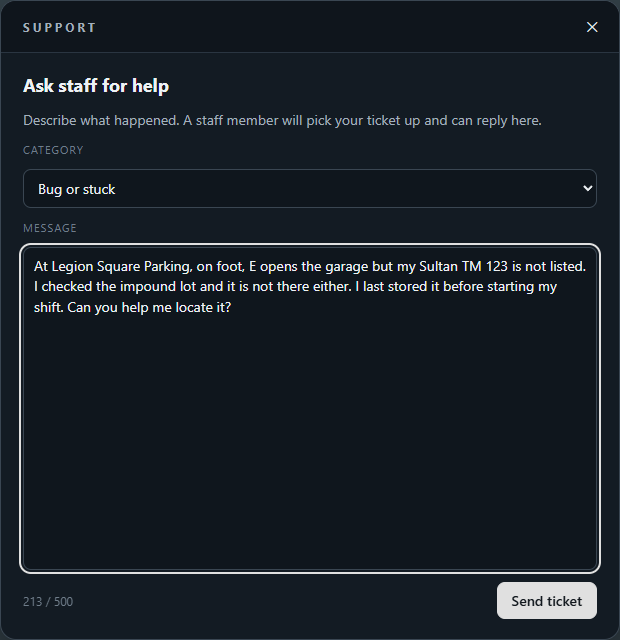
- If you have no active ticket, choose a Category: Question, Bug or stuck, Player report, or Other.
- Write your Message, up to 500 characters. Explain the issue and the checks you already tried, then click Send ticket.
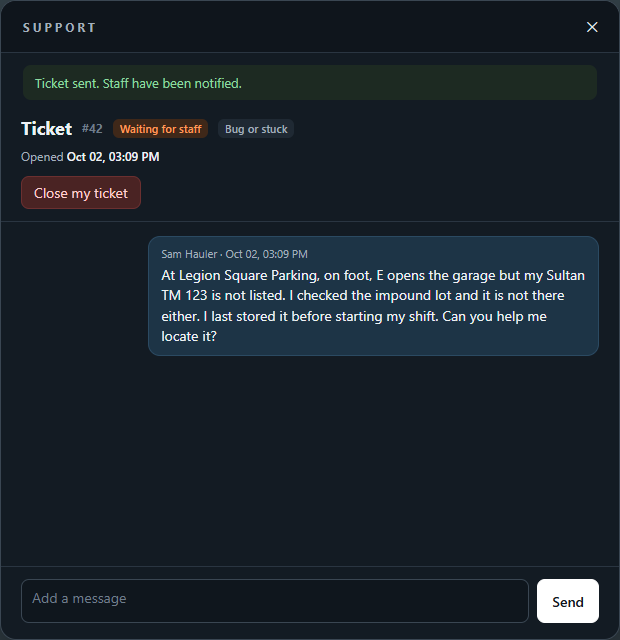
- Wait for Ticket sent. Staff have been notified. The form changes to your ticket and conversation; note the ticket number.
- You may close the support window with ESC or its close button and continue waiting. Reopen /ticket to view your active request.
Writing a useful report
- Say what you were trying to do, what you expected and what happened instead. Include the exact error message when one appeared.
- Name the place, class and duty state. For vehicle or work problems, include the plate, garage name, call number or contract reference shown by the relevant interface.
- Describe the steps that led to the problem and what you already checked. Say whether it happened once or happens every time.
- For a player report, describe what happened, where and when, and include the player ID or name if known. Keep the report factual; do not guess an ID.
- If you have screenshots or a recording, mention that in the message and follow the staff member's instructions for sharing them. The ticket form itself is a text conversation.
Example: At Legion Square Parking, on foot, E opens the garage but my Sultan TM 123 is not listed. I checked the impound lot and it is not there either. I last stored it before starting my shift. Can you help me locate it?
Reading replies and following up
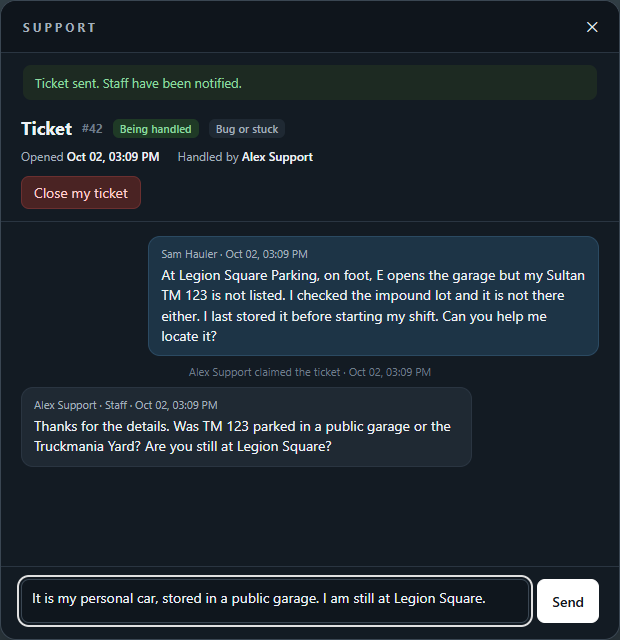
- Waiting for staff means the ticket is in the queue. Being handled means a staff member has claimed it; Handled by shows their name. Neither status promises an immediate response.
- A staff reply triggers a notification. Use /ticket to read the conversation, including the original report and replies.
- Use Add a message and click Send, or press Enter in the reply field, to answer staff or provide an update. Each message allows up to 500 characters; allow at least 2 seconds between replies.
- Closing the support window leaves the ticket active. If you disconnect, the ticket remains in the queue and staff see you as offline. On returning, use /ticket to continue with the active request.
- Follow the staff instructions and report whether their suggested check worked. If the problem changes or resolves while you wait, add that update.
Closing a ticket or handling an error
- If you no longer need help, use Close my ticket. It ends the request immediately; closing the window with ESC only hides it.
- Staff may close a completed ticket. The open window shows Your ticket was closed and returns to the form. If you still need help, describe what remains unresolved and include the earlier ticket number when opening a new request.
- Write a message first: enter a non-empty message within the 500-character limit and choose a valid category.
- Sending messages too quickly or a new-ticket cooldown: wait for the required gap, then try once.
- Tickets are unavailable or still loading: wait a moment and try /ticket again. Do not assume the request was submitted until you see its ticket number or the success message.