Opening and reading your inventory
Press TAB to open your inventory. Press ESC or click Close to return to the world. The Inventory tab shows your items, equipped clothing and quick-access slots. Personal info contains your identity and licences, with options to view or show documents; Employment shows your current job information.
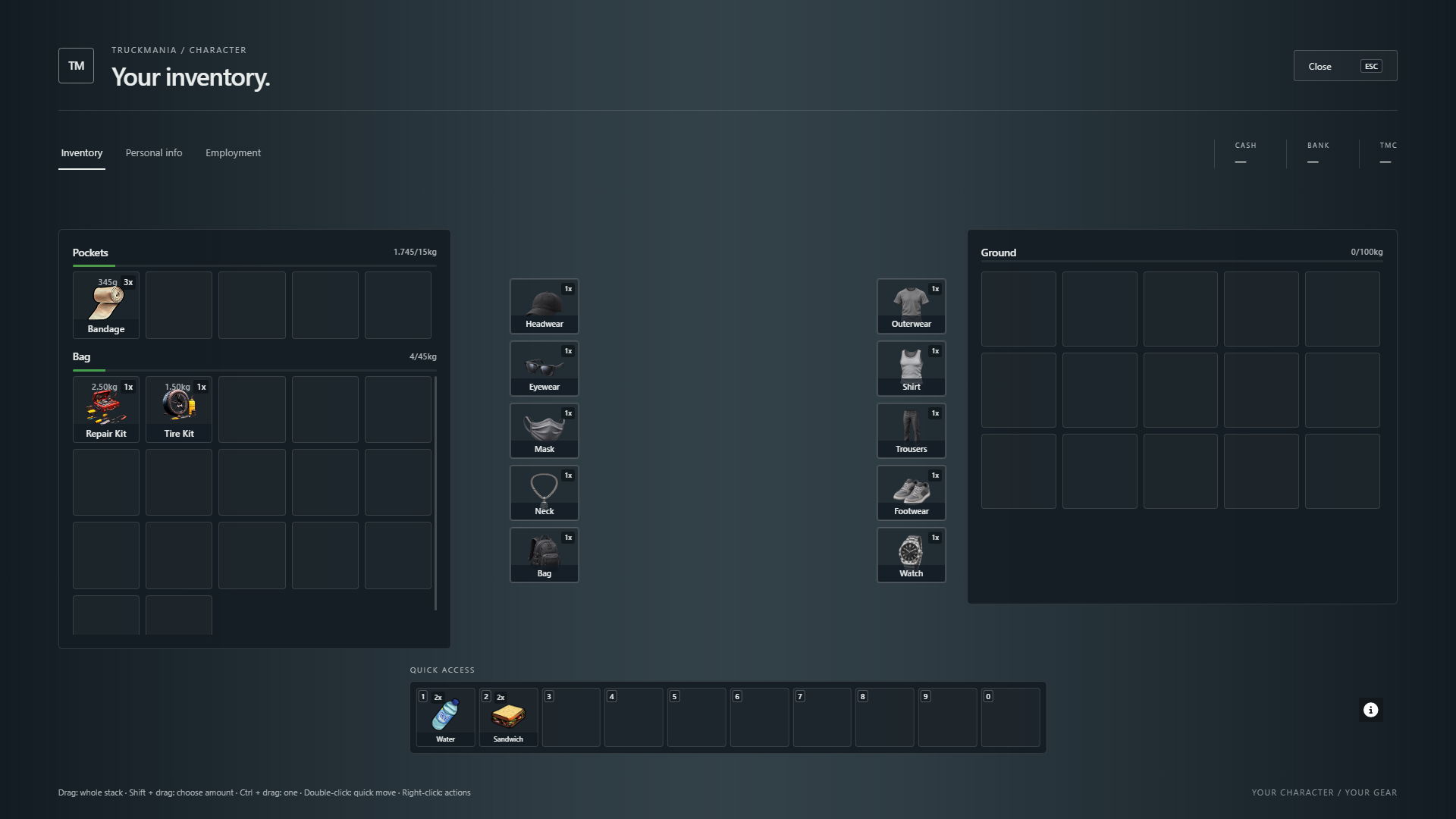
- Pockets: five storage slots on the left, plus the ten quick-access slots along the bottom. Both share the same 15 kg pocket limit.
- Bag: extra storage below Pockets, available only while a bag is equipped. The current standard bag adds 17 slots with a separate 45 kg limit.
- Equipment: ten labelled slots around your character for headwear, eyewear, mask, neck, bag, outerwear, shirt, trousers, footwear and watch.
- Right panel: the ground or a container such as a locker or vehicle storage. Check its name before transferring items.
Moving items and choosing an amount
- Drag an item to move its whole stack. Drop it onto an empty slot to relocate it, or onto a compatible stack to combine them.
- Ctrl + drag moves one item. Shift + drag opens an amount popup at the destination: use the slider, number field or 1 / Half / All presets, then press Enter to confirm.
- ESC or clicking outside the amount popup cancels that move. The amount is chosen separately for each move.
- Double-click quick-moves a whole stack to the other open inventory; Ctrl + click quick-moves one. These shortcuts do nothing when the right panel is only Ground, so use an explicit drag or Drop action to put something down.
- Right-click for available actions such as Use, Give and Drop. Give asks for an amount when handing over a stack; choose the nearby recipient shown by the interface.
Using items and quick access
Right-click an item and choose Use when available. Put frequently used items into the bottom quick-access slots, labelled 1 through 9 and 0. Once the inventory is closed, the matching number key uses that slot. These are the default bindings; change server shortcuts under ESC, Settings, Key Bindings, FiveM.
- Water and food restore thirst and hunger. Carry some before a long shift.
- Use a Repair Kit at the engine bay for engine and fuel-tank repairs. Use a Tire Kit beside the affected wheel to fix a flat tyre or replace a missing wheel.
- Advanced Repair Kits require an on-duty mechanic and are used at the engine bay for a full repair.
- Items may need a suitable location, class or other conditions. Read the item description and any on-screen message if Use is unavailable or a use is refused.
Equipping clothing and a watch
- Carry the clothing item you want to wear. Drag it from storage into its matching equipment slot, such as headwear into Head or a watch into Watch.
- The equipped item changes your character's appearance. To take it off, drag it back into available storage; equip another matching item to change that piece.
- Equip a watch to show the minimap while on foot. In a vehicle, the minimap appears without a watch.
Starter clothing is bound to your character: you can move it within your inventory, but cannot drop, store or trade it. Other clothing must fit the equipment category and your character; the interface explains rejected moves.
Wearing and taking off a bag
Drag a bag into the Bag equipment slot to open its storage section. New purchases and pickups normally go into the worn bag first, then spare pocket slots, then quick-access slots; a matching existing stack may be used instead.
Taking off a bag packs its contents inside the bag item and closes that storage section. Equip it again to access those contents. A filled bag cannot go inside another bag, and a worn bag cannot be moved into its own storage.